How to Change Your
Changing a Gmail signature takes only a few steps, but desktop and mobile signatures are managed differently. Follow the instructions for your device below, then see how TrustNinja can turn a standard business signature into a recurring customer-feedback touchpoint.
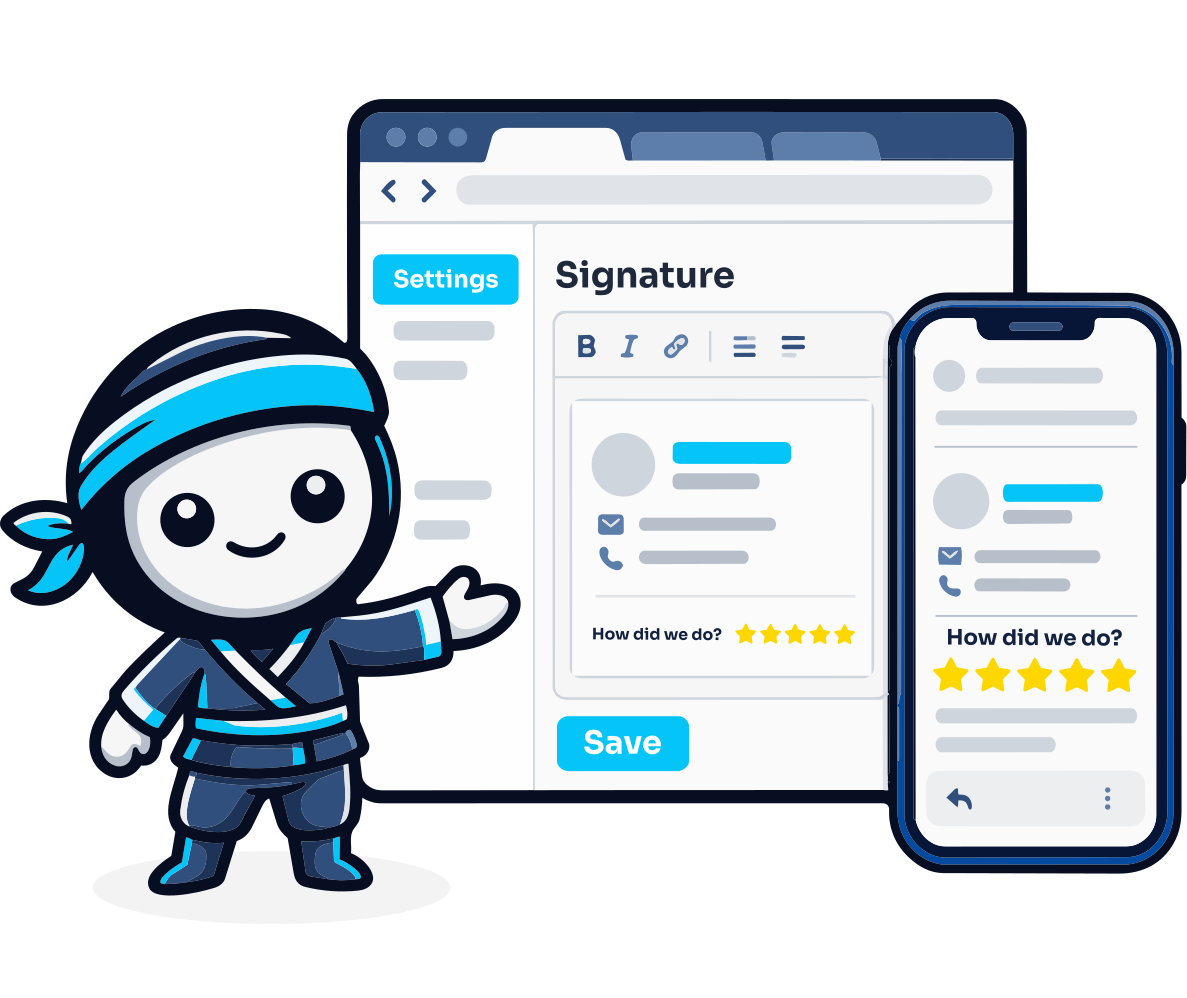

Quick Answer
How Do I Change My Email Signature in Gmail?
On a computer, open Gmail, select Settings then See all settings, stay under General and scroll to Signature. Select the signature you want to edit, make your changes, choose the appropriate defaults for new emails and replies if needed, then select Save Changes at the bottom. Gmail also supports separate mobile signatures in the Android and iPhone or iPad apps.

The Problem
Why Gmail Signature Settings Can Be Confusing
Gmail supports multiple signatures and separate mobile settings, so changing a signature on one device does not always produce the result a user expects everywhere. Business teams can also create inconsistent signatures when every employee manages formatting independently.
Desktop Gmail and the Gmail mobile apps use different signature settings.
Gmail can store multiple signatures and different defaults for new messages versus replies and forwards.
Accounts with multiple Send mail as addresses can assign different signatures to each sending address.
Mobile signatures may override the desktop signature when sending from the Gmail app.
Images can display incorrectly if they are too large or have unsuitable sharing permissions.
Staff signatures can become inconsistent in wording, branding and customer calls to action.
A standard signature provides contact information, but it does not create a structured customer-feedback process on its own.

Why It Matters
Why a Good Email Signature Matters
Create a Consistent Identity
A clear business signature helps recipients identify the sender, company, role and relevant contact details.
Make Useful Actions Easy
A signature can provide direct access to a website, telephone number, booking page or other appropriate customer action.
Create an Everyday Touchpoint
Customer-facing teams already send routine Gmail messages. A carefully designed signature can use those existing interactions to support useful next steps.
Support Feedback and Reputation
TrustNinja's Email Signature Survey can add a feedback opportunity to everyday communication, helping make customer feedback more consistent without a separate survey email every time.
On Mobile
Changing Your Gmail Signature on Mobile
Gmail keeps separate signatures for its mobile apps, so set these on the device itself.
Gmail on Android
Step 1: Open the Gmail app.
Step 2: Tap Menu, then Settings.
Step 3: Choose the Google Account to update.
Step 4: Tap Mobile signature.
Step 5: Enter or edit the signature, then tap OK.
If you do not set a mobile signature, new messages can use your desktop signature.
Gmail on iPhone or iPad
Step 1: Open the Gmail app.
Step 2: Tap Menu, then Settings.
Step 3: Under Compose and Reply, tap Signature settings.
Step 4: Turn on Mobile Signature.
Step 5: Add or edit the signature, then go back to save.
With multiple accounts, update the setting for each account separately.
Using Multiple Signatures
Gmail on desktop supports multiple named signatures. Set one default for new emails and another for replies or forwards, and use the Insert signature control to switch while composing. Google currently allows signatures of up to 10,000 characters.
How It Works
How to Change Your Email Signature in Gmail (Desktop)
Open Gmail in Your Browser
Open Gmail on a computer so you can access the full desktop settings.
Open Settings
At the top right, select Settings, then See all settings.
Find the Signature Section
Under the General tab, scroll down to the Signature section.
Edit Your Signature
Select the signature you want to edit and update the text, formatting, links or image.
Save Your Changes
Review the defaults for new emails and replies or forwards, then scroll to the bottom and select Save Changes.
The TrustNinja Solution
Turn Your Gmail Signature Into a Customer Feedback Tool
TrustNinja extends the role of a standard business signature by adding a feedback opportunity to emails your team already sends. Add a concise feedback prompt to the signature so customer feedback becomes part of normal communication rather than relying only on separate survey or review-request campaigns.
Email Signature Survey
- What it is
- A customer feedback prompt embedded in a business email signature.
- How it works
- Customers can respond from routine email communication.
- Business outcome
- Creates an ongoing feedback channel across everyday interactions.
Review Invitations
- What it is
- A structured process for inviting genuine customers to share feedback or reviews.
- How it works
- Review opportunities are added to appropriate customer touchpoints.
- Business outcome
- Reduces reliance on staff remembering one-off requests.
QR Code Reviews
- What it is
- A scannable feedback and review touchpoint for physical environments.
- How it works
- Customers scan a QR code from receipts, invoices, tables or printed material.
- Business outcome
- Complements Gmail-based feedback with an in-person option.
Review Monitoring
- What it is
- An organised approach to customer review and feedback activity.
- How it works
- Review and feedback activity is tracked in one place.
- Business outcome
- Helps the business keep track of sentiment and reputation issues.
Customer Feedback
- What it is
- Structured information from customers about their experience.
- How it works
- Feedback is collected across everyday interactions.
- Business outcome
- Provides useful input for service improvement.
Reputation Management
- What it is
- The ongoing management of customer feedback and online reviews.
- How it works
- Feedback, reviews and responses are handled as one process.
- Business outcome
- Makes reputation management more systematic.

Who This Is For
Who Can Use a TrustNinja Gmail Email Signature Survey?
The Email Signature Survey is particularly relevant to businesses whose teams communicate regularly with customers through Gmail or Google Workspace. The more customer conversations handled by email, the more opportunities a consistent signature can create for collecting feedback.
Service-Based Businesses
Add feedback to appointment communication, quotations, project updates and support emails.
Hospitality and Accommodation
Use booking, guest-relations and post-stay communication as appropriate feedback touchpoints.
Trades and Contractors
Add feedback opportunities to quotations, scheduling, invoices and completed-job communication.
Professional Service Providers
Use a professional Gmail signature to collect feedback from appropriate client interactions.
Retail and E-commerce Teams
Add feedback to customer-service and post-purchase communication.
Customer Support Teams
Create a persistent feedback opportunity after customer-service conversations.
Compare
Standard Gmail Signature vs TrustNinja Email Signature Survey
| Standard Gmail Signature | TrustNinja-Enhanced Signature | |
|---|---|---|
| Customer action | Usually a website, booking or social link | Can include an ongoing customer-feedback action |
| Feedback collection | Usually requires a separate follow-up | Feedback opportunity appears in routine emails |
| Consistency | Depends on each employee's setup | Can be part of a standardised feedback workflow |
| Review management | Not built into Gmail itself | Connects email interactions to a wider TrustNinja review process |